Using Organizations
Organizations in augg.io CMS
Organizations in the augg.io CMS help teams collaborate by allowing multiple users to share access to workspaces and their contents.
This guide covers switching organizations, leaving organizations, and inviting/managing members.
Switching Organization
To switch an organization:
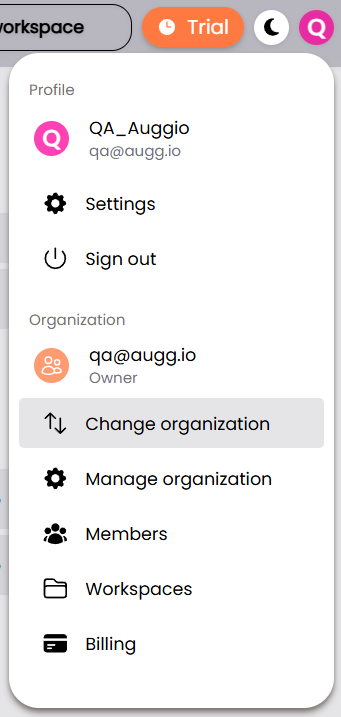
- Open the menu in the top-right
- Click Change Organization
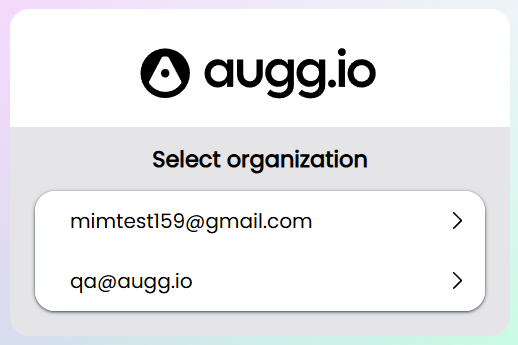
- Select the organization you want to switch to
Leaving Organization
To leave an organization:
- Switch to the organization you want to leave
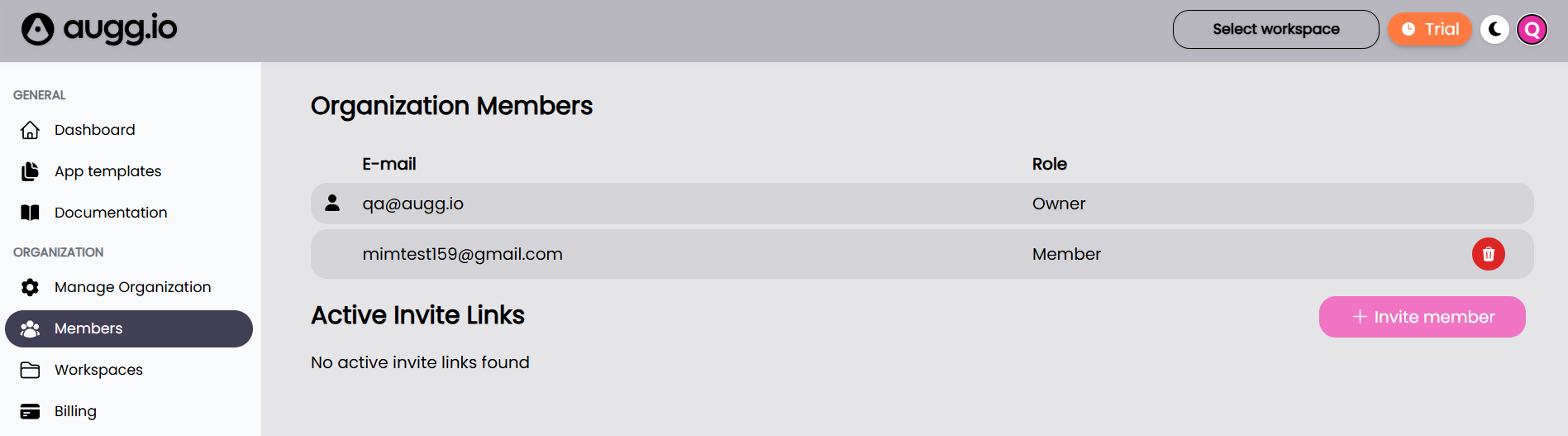
- Navigate to Members on the left side menu
- Click the orange door icon next to your account

Members
Organization members allows you to provide and manage access to your applications, locations and experiences with other accounts.
Inviting a Member
To invite a new member:
- Navigate to Members on the left side menu
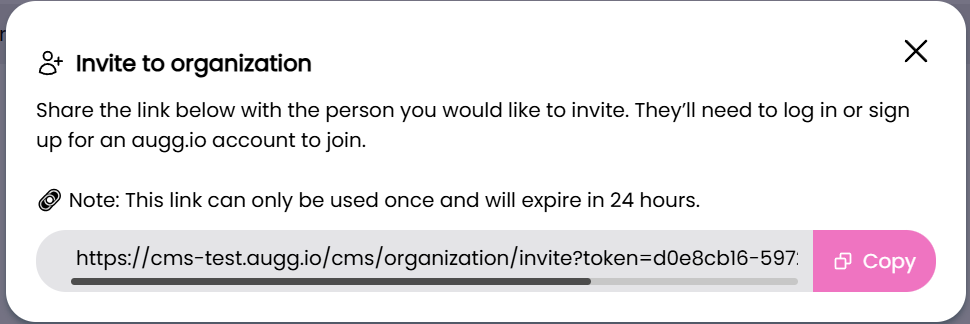
- Click the Invite Member button
- Click Copy to save the generated invite link to your clipboard
Active Invite Links
- Active invite links can be seen in the Members tab
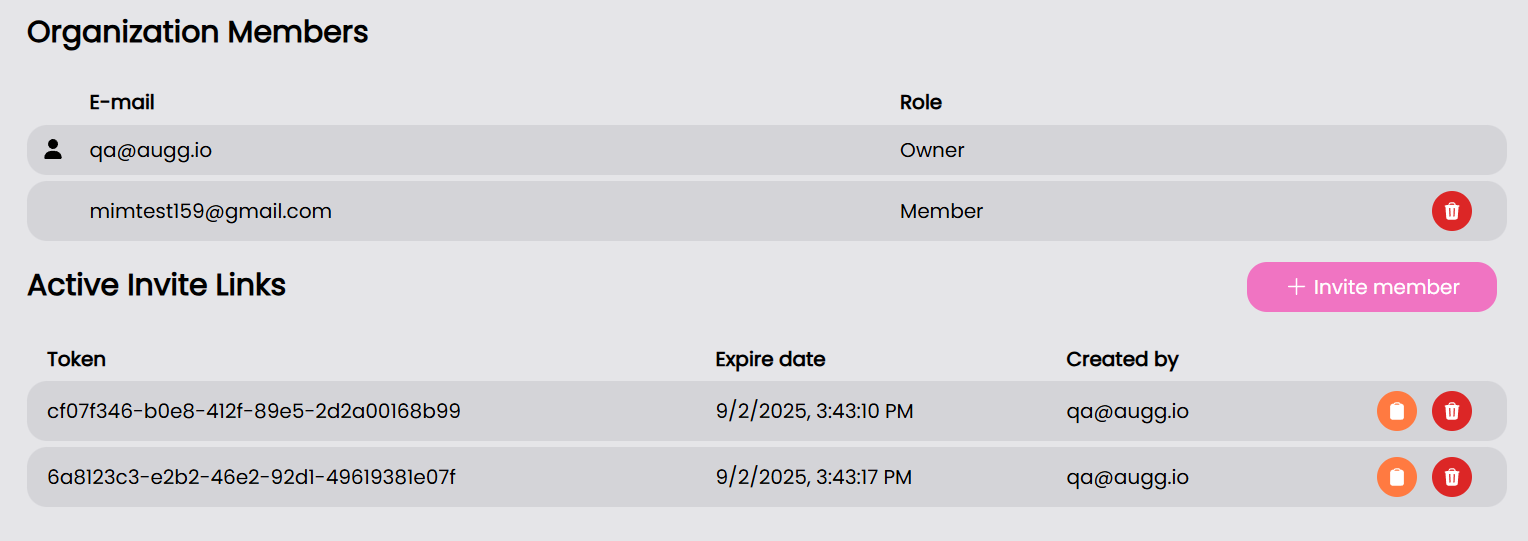
- You can copy the link by clicking the orange disk icon
- Once an invite link is used or deleted (via the red trashcan icon), it will no longer be available.
Managing Members
You can manage your organization members from the Members tab
Editing Member Roles
To edit member roles, see Using Roles and Membership.
Removing Members
To remove a member:
- Click on the red trashcan icon of the member you want to remove
- Confirm the removal of the member