Creating Google Service Account and getting Google API Key
TLDR?
Enable ARCore API in Google Cloud console
To be able to host and resolve Google Cloud anchors via augg.io, you need to enable ARCore API in your Google Cloud Console project.
-
Go to console.cloud.google.com and login.
-
Create new project or select relevant project
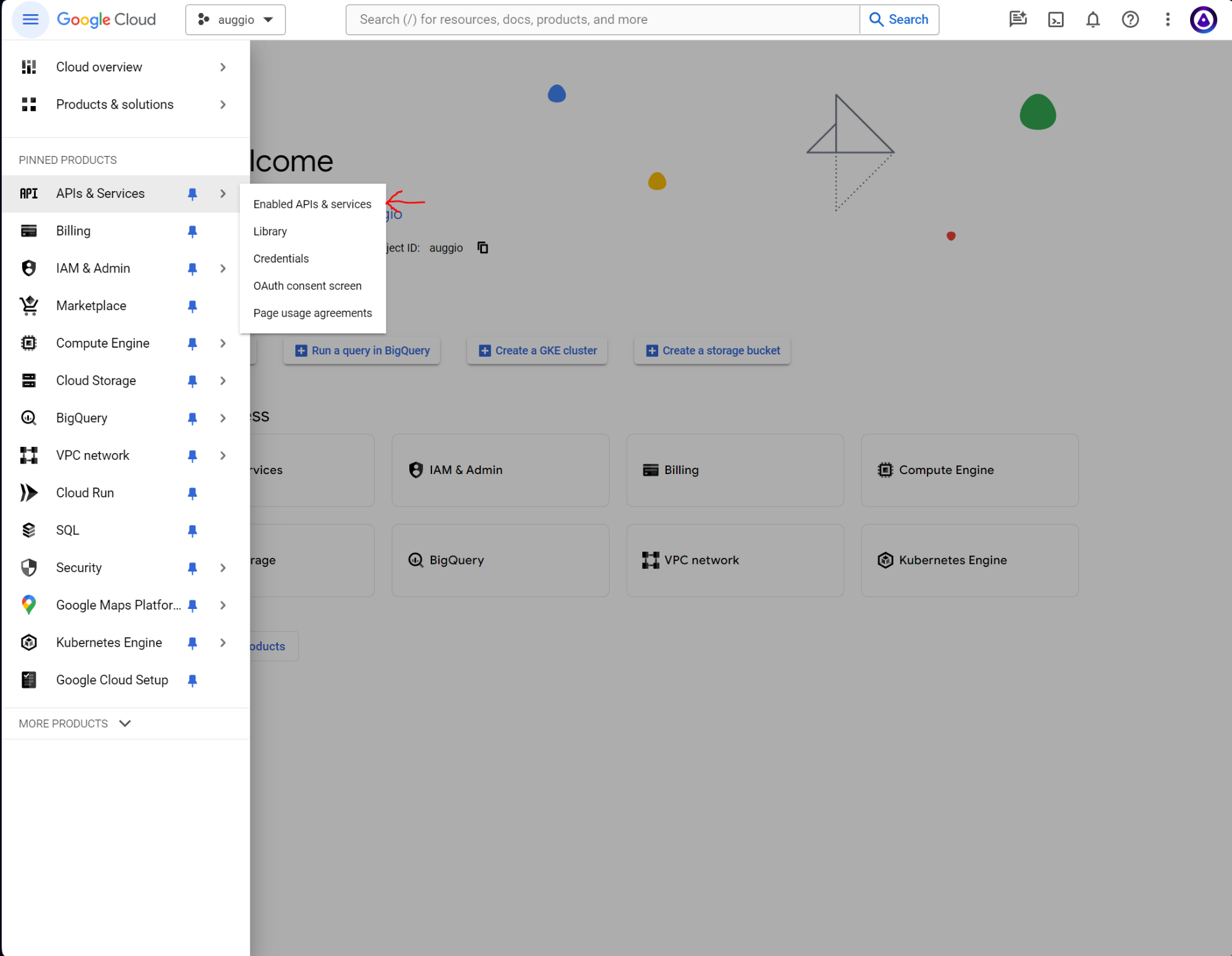
- Click Enabled API & Services
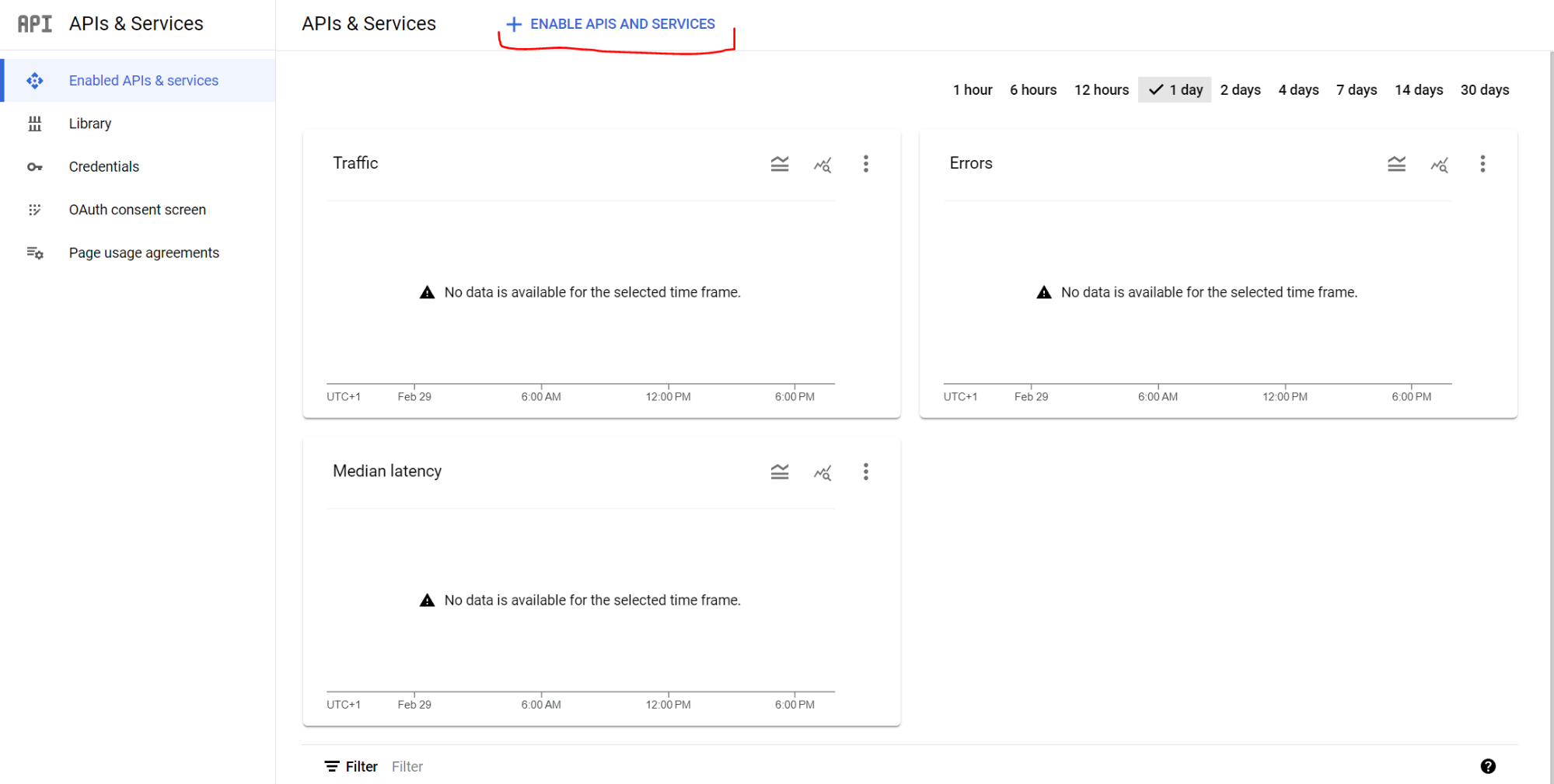
- Click + Enable APIs and Services
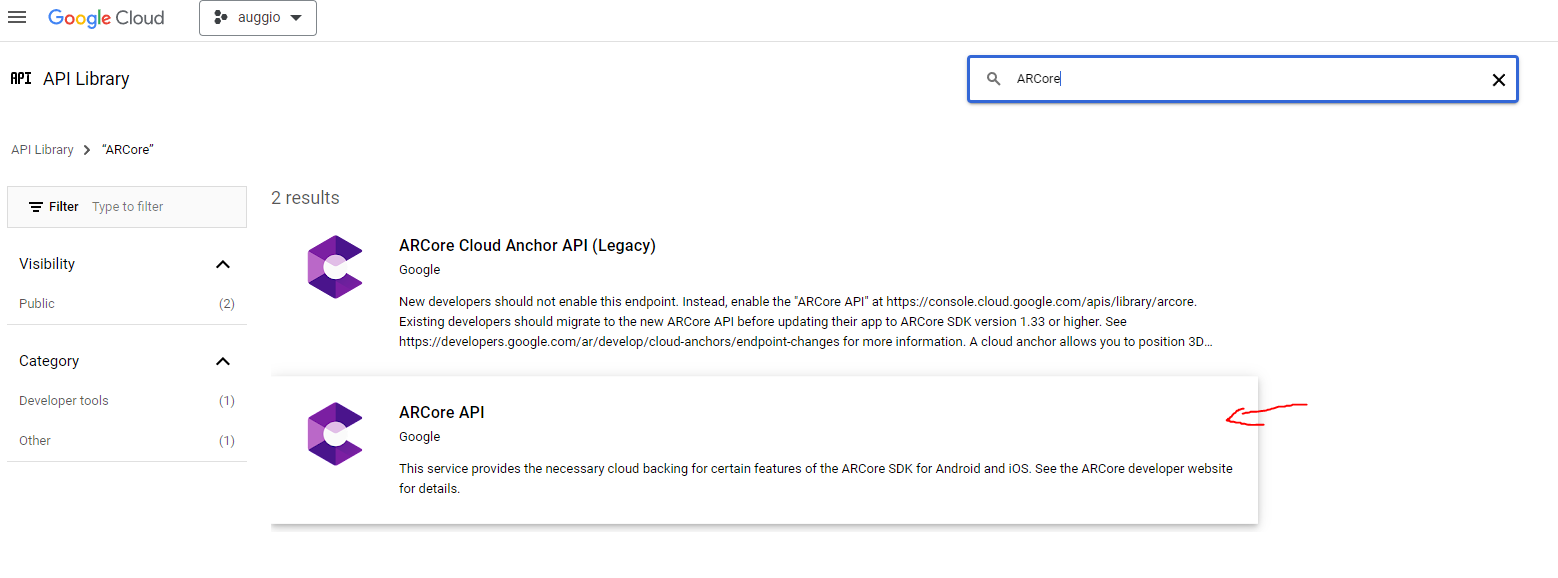
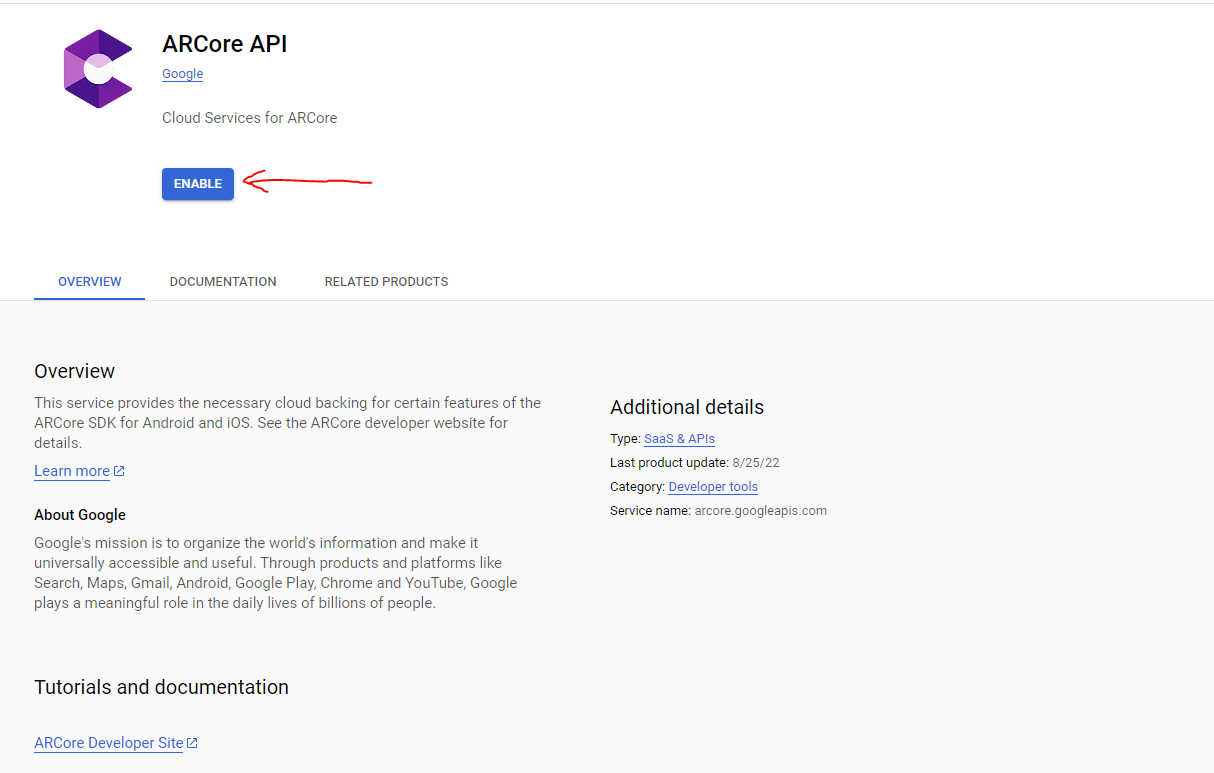
- Find ARCore API open and click enable.
Create Service Account
In order to manage your Google Cloud anchors (create, delete, set time to live), augg.io needs access to your Google anchor service. This is possible by providing us a google service account, which can be created in following steps:
-
Go to console.cloud.google.com and login.
-
Create new project or select relevant project
-
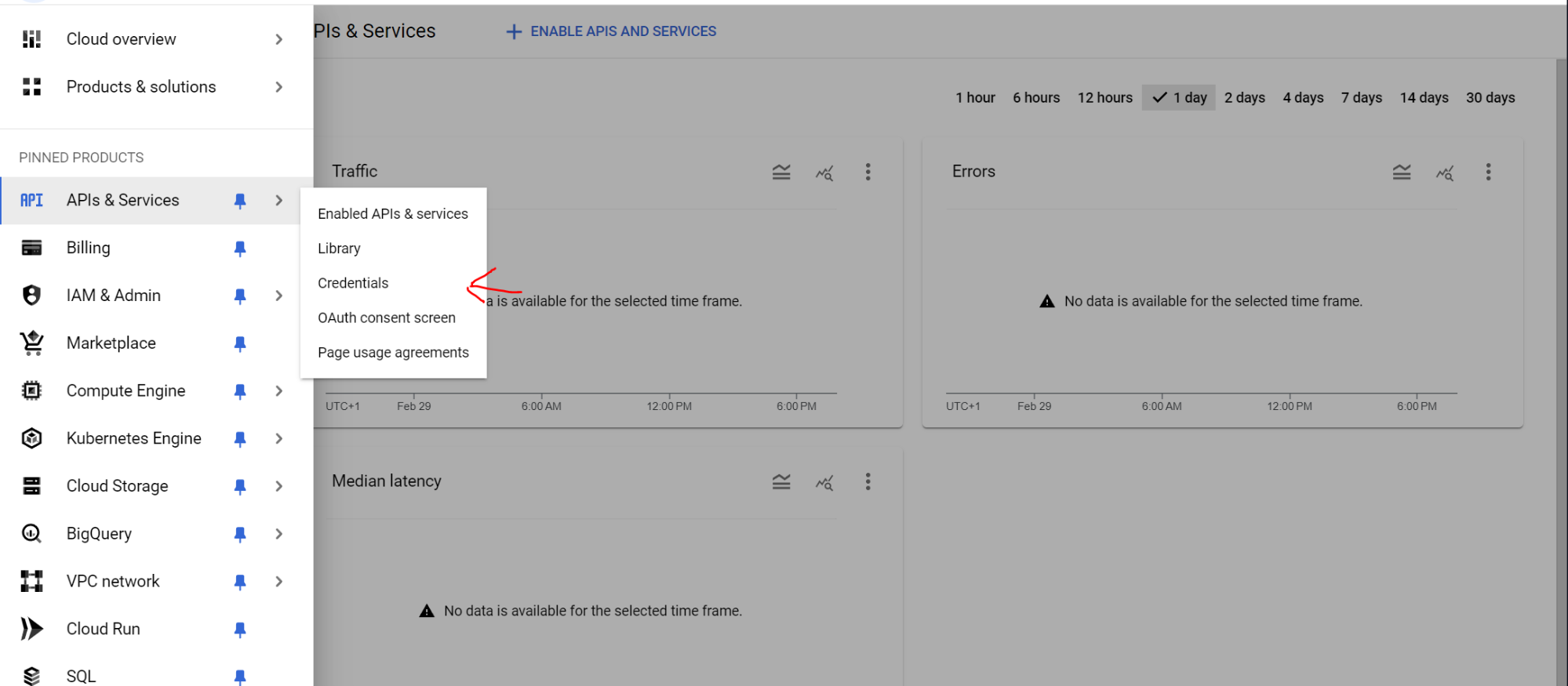
In the right hand menu click on Credentials
-
Click Create Credentials and select service account

-
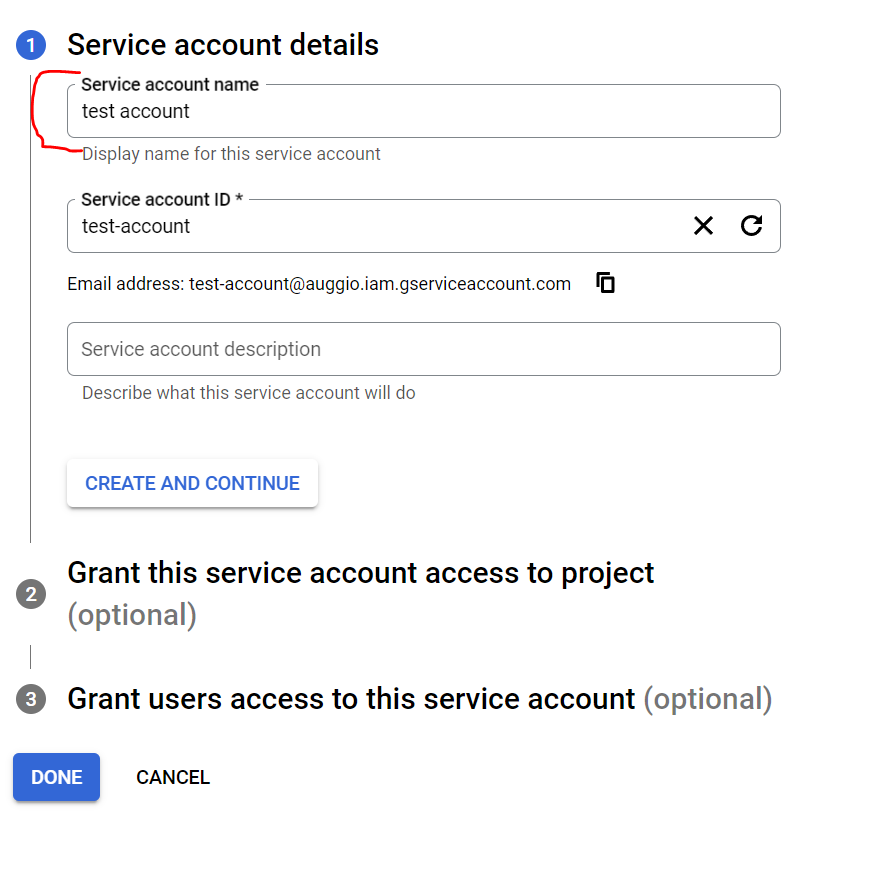
Fill in the service account name. You don’t have to touch anything else.
-
Select (click on) the created service account.
-
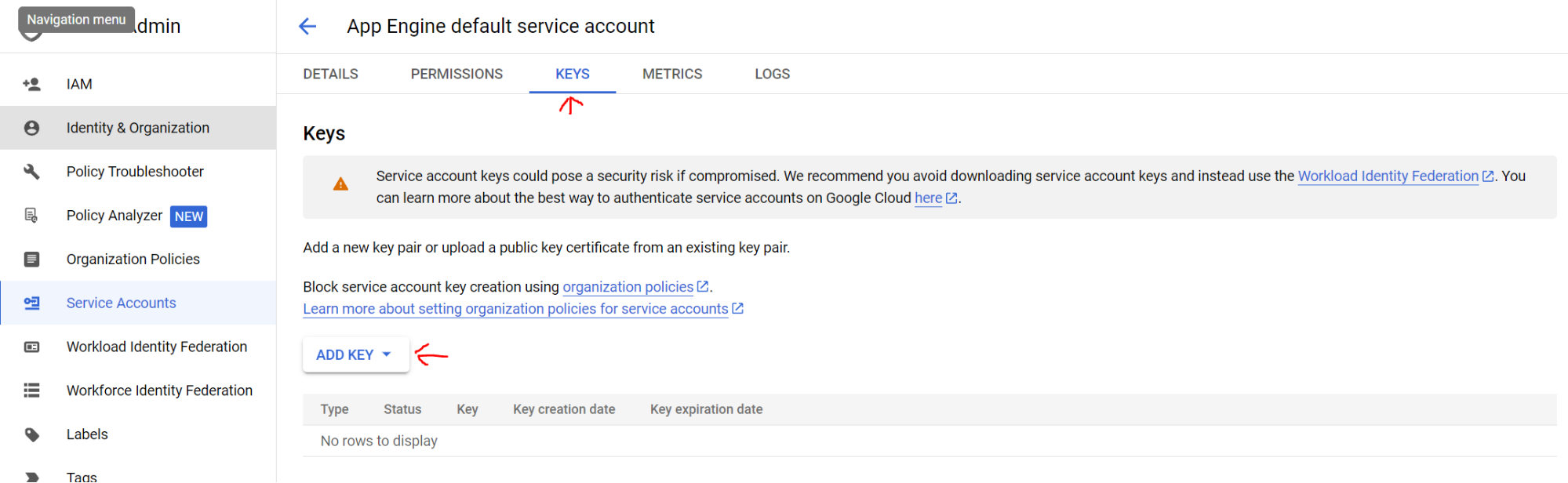
Click Keys. Click Add Key -> Create new key
-
Select JSON
-
This has created and downloaded a JSON file.
-
Go to cms.augg.io and login.
-
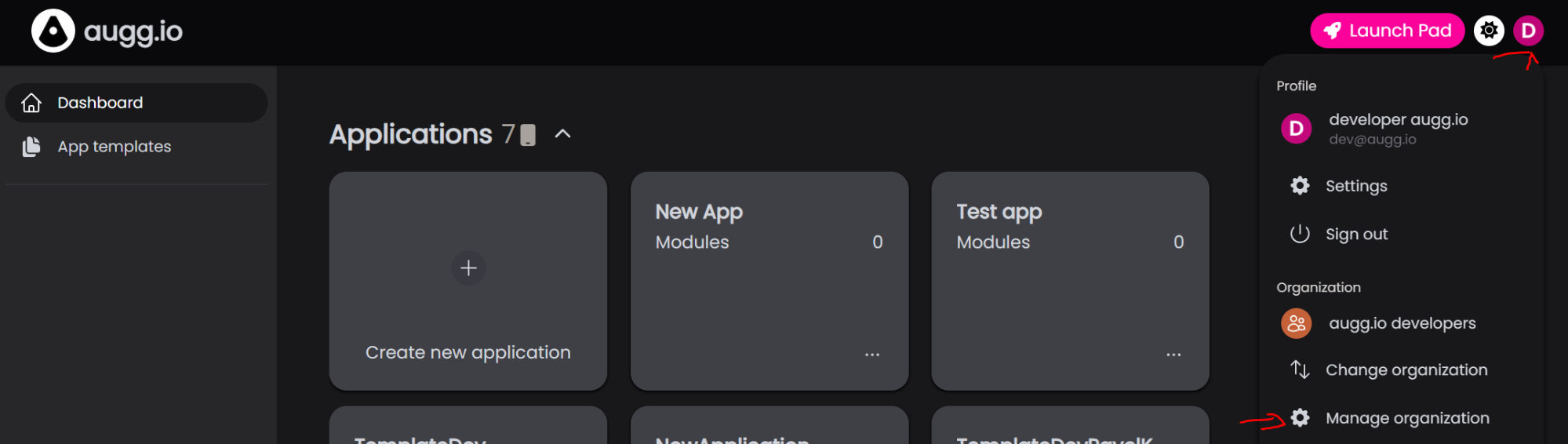
Click on profile in the top right corner and select manage organization.
-
Upload JSON file.
-
You will have to confirm to delete all data. You will lose all data created on the Trial tier.
Get Google API Key
Google API Key is needed in your Unity application, so it can resolve previously created anchors and display your prepared content. To create this API key, please follow these steps:
-
Return to Credentials screen in Google Console
-
Click Create Credentials and select API Key

-
Copy and paste the API key inside the Unity Editor (see Setting up ARCoreExtensions chapter in this manual)
Congratulations, you’ve made it to the end!
Need a reminder of what you’ve done earlier in the guide? The previous part is right here: 01 - Setting up augg.io in a project
The next part of the guide awaits you here: 03 - Start using augg.io