Setting up augg.io in a project
If you are using example project start with Setting up Example project first.
Setting up ARCore Extensions
-
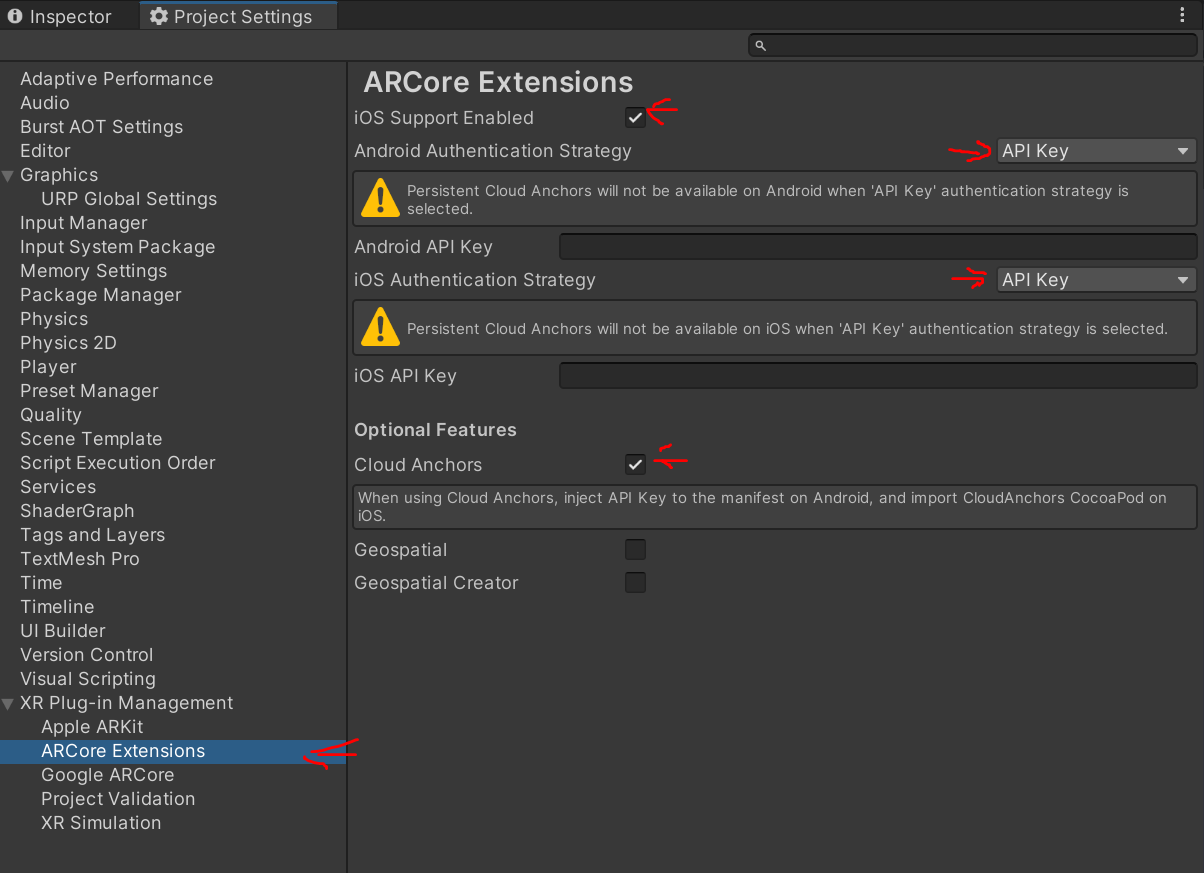
In the top menu click Edit - Project Settings and select ARCore Extensions
-
Set iOS Enabled to true if needed
-
Set Cloud Anchor to true
-
Set Authentication Strategy to API key
-
Fill in your Google Cloud Anchors API key.
-
Go to Assets - External Dependency Manager - Android and click Force Resolve
Start using augg.io
-
Create an account at cms.augg.io or inside the scanning application.
-
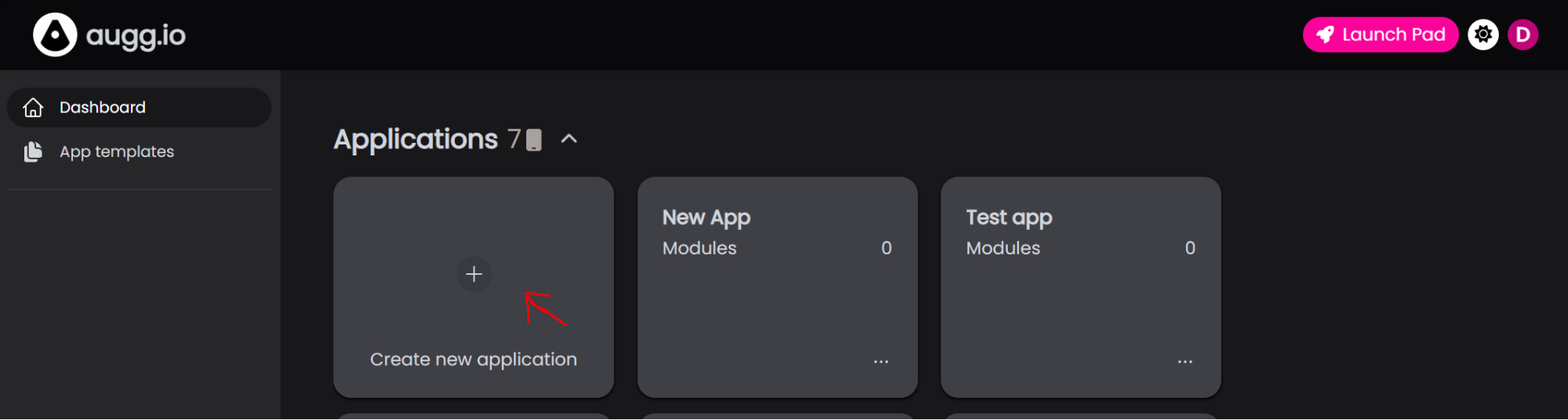
Create a Blank Application in CMS.
-
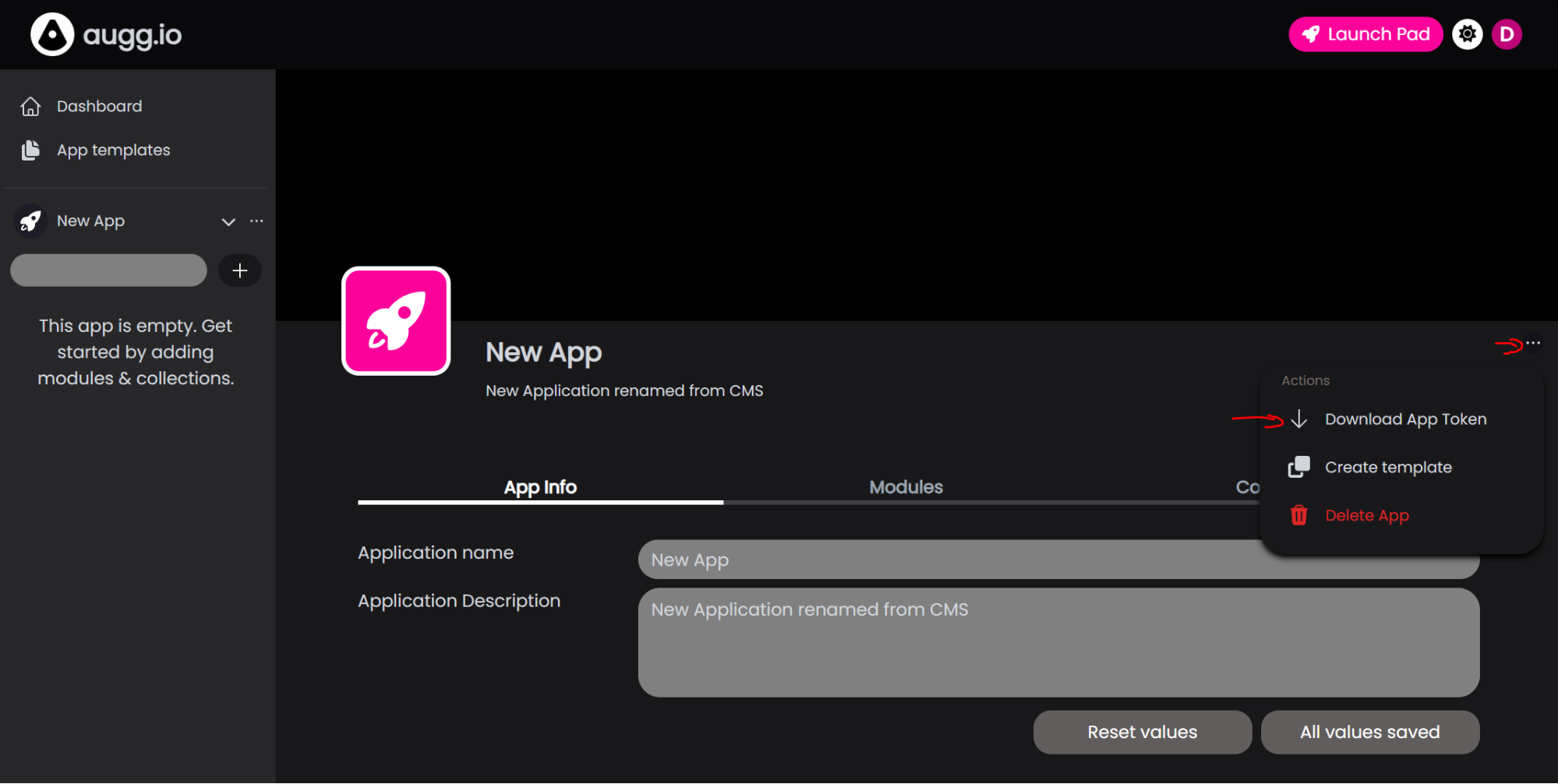
Open the new application.
-
Click the three dots in the right corner and select Download App Token
-
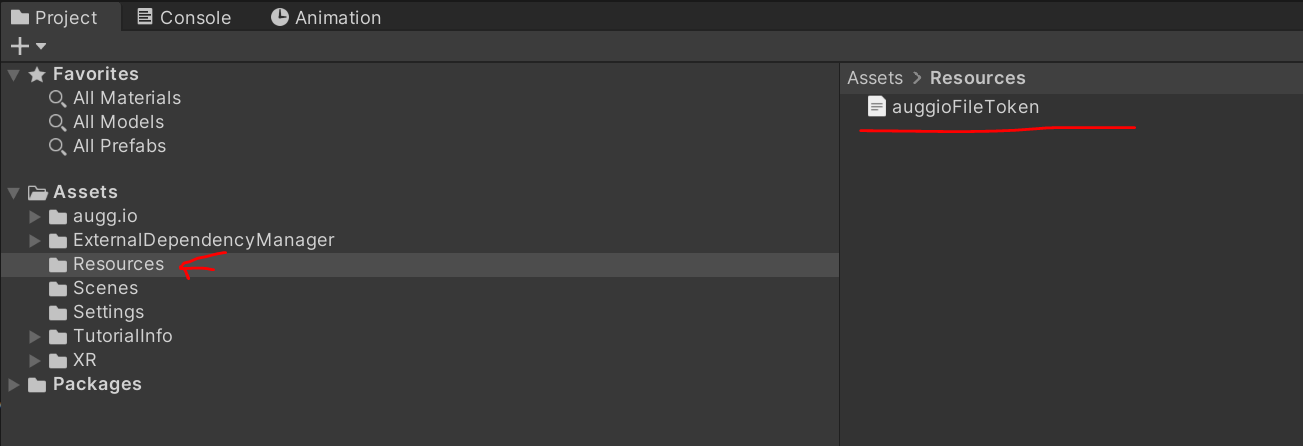
Put your Application file token inside the Assets/Resources folder. It has to be named auggioFileToken.json.
Congratulations, you’ve made it to the end!
Need a reminder of what you’ve done earlier in the guide? The previous part is right here: 00 - Create an empty project
The next part of the guide awaits you here: 02 - Creating Google Service Account and getting Google API Key