Setting up Example project
Please use Unity 2023.1 or newer.
Follow this tutorial if you are using the example project.
Installing augg.io into the example project
Example project should come with pre-installed augg.io packages. Please check Window - Package Manager to check presence of augg.io and ARCore Extensions package. If the packages are missing here is a quick tutorial on how to add them into the project.
-
In the top bar select Window - Package Manager
-
Click the + button in the top right corner and select install package from tarball.
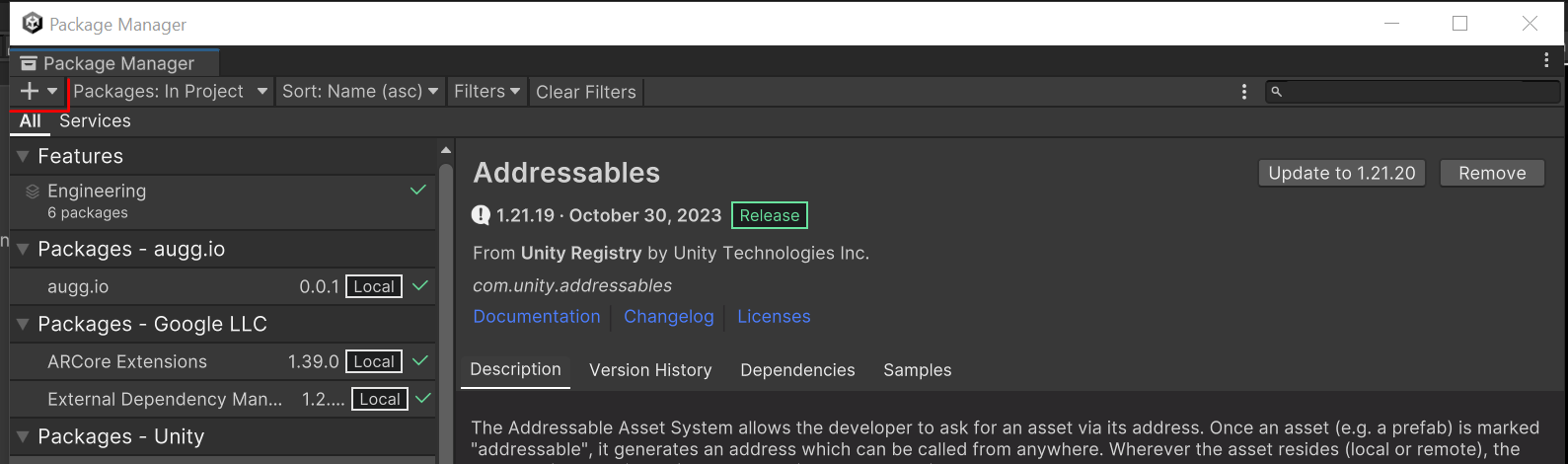
-
Starting 0.0.3 we use the official ARCoreExtensions package by Google which can be installed by following this tutorial. If you are installing the official package please keep in mind the following things.
- Choose ARFoundation 5+ version
- if you already have External Dependency Manager installed in your project for example as a dependency of some Firebase package, you want to download a version without EDM4U, otherwise you will have a conflict
-
Click the + button again and find the path to augg.io SDK tarball (tar.gz file extensions) and install into the project.
Important: If you installed an older version of ARCoreExtensions (e.g. 1.39 which is shipped with some earlier versions of augg.io) you may have a problem with building the application to iOS 18. To resolve this issue, upgrade to a newer version of ARCoreExtensions by following this tutorial Upgrading ARCoreExtensions in the project.
Congratulations, you’ve made it to the end! Please, continue with 01 - Setting up augg.io in a project