Start using augg.io
Login to Editor Plugin
-
In Unity in the top bar click on augg.io -> Editor Plugin
-
Go to cms.augg.io
-
Click on profile and select Settings
-
Copy the API key
-
Enter the API key into the plugin.
Plugin basics
-
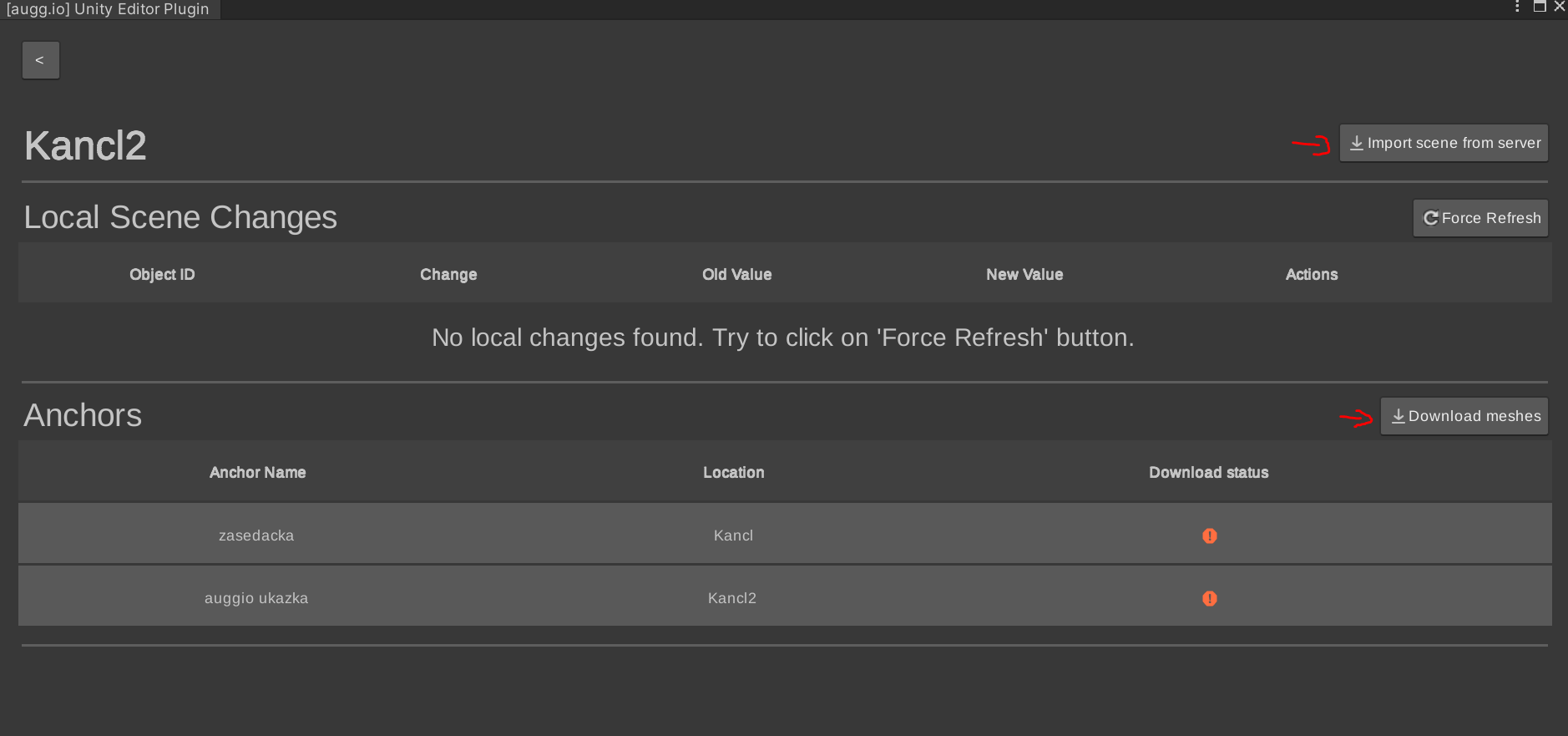
Select the experience you want to import into unity.
-
Click download meshes
-
After the meshes get downloaded click Import scene from server
-
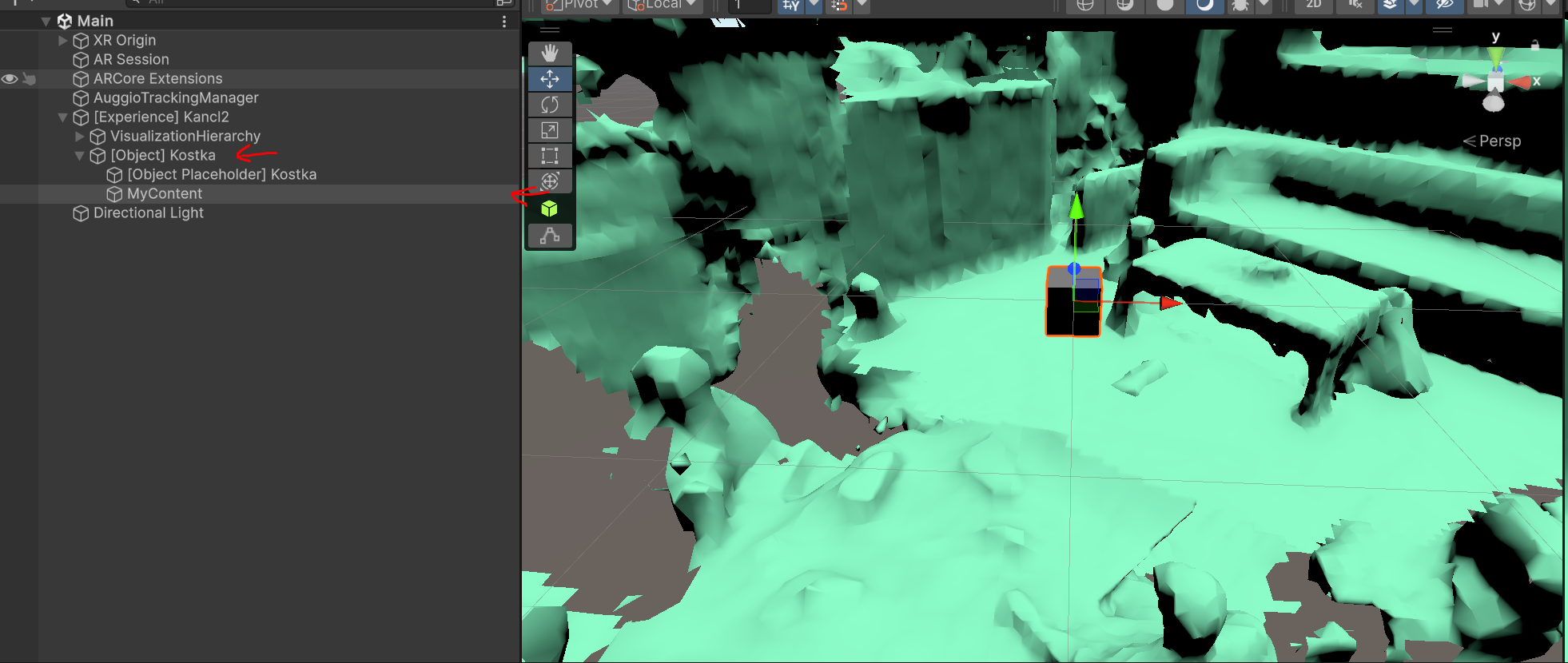
If you want your content to be tracked it has to be parented below an GameObject representing AuggioObject. Its name will look like this [Object] ObjectName.
-
To be able to reposition content without building a new app each time. Don’t move with MyContent but move with AuggioObject (name starts with [Object])
-
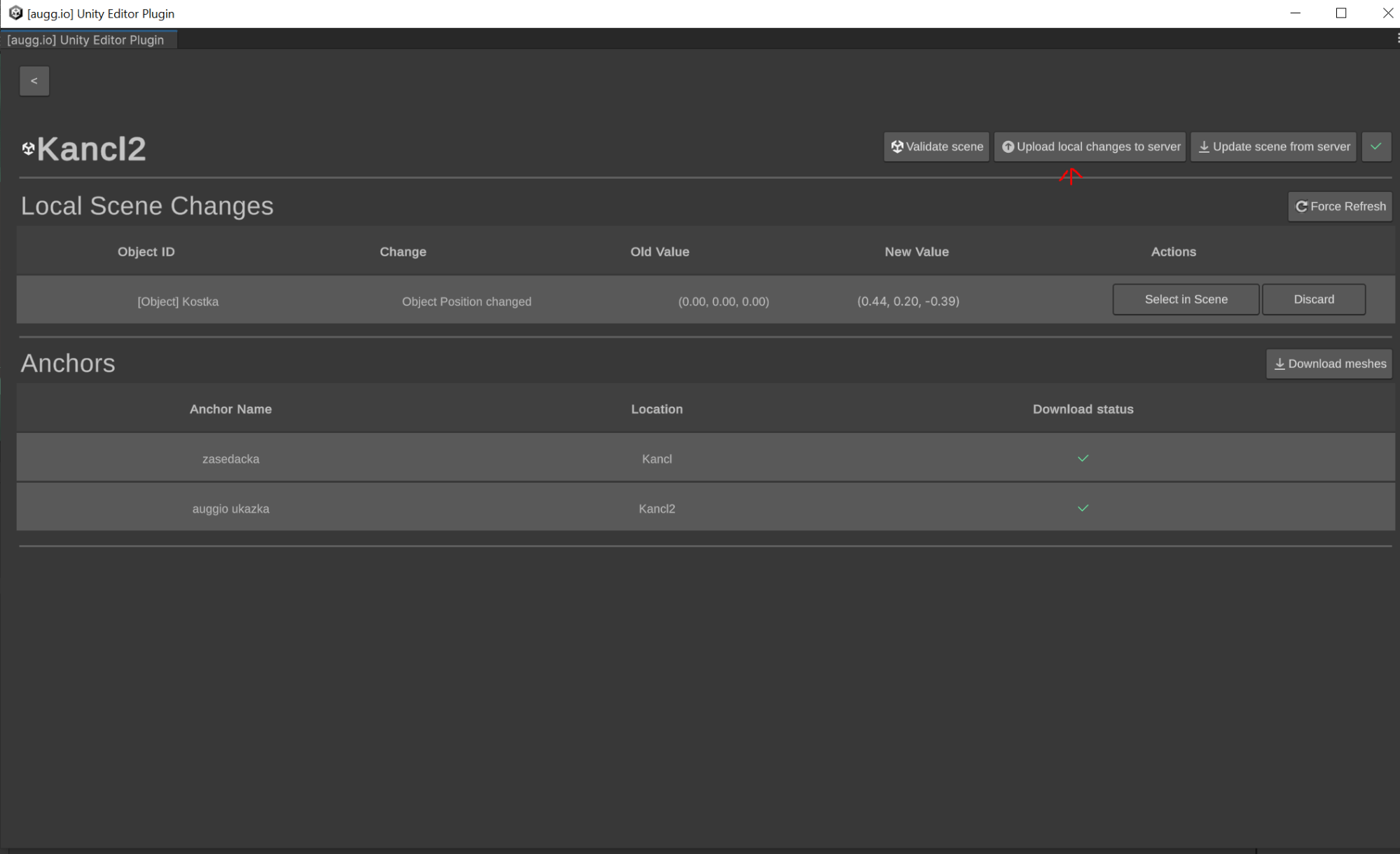
If you move the object make sure to push the changes to the server otherwise the new position won’t be seen in the build.
Common Issues
-
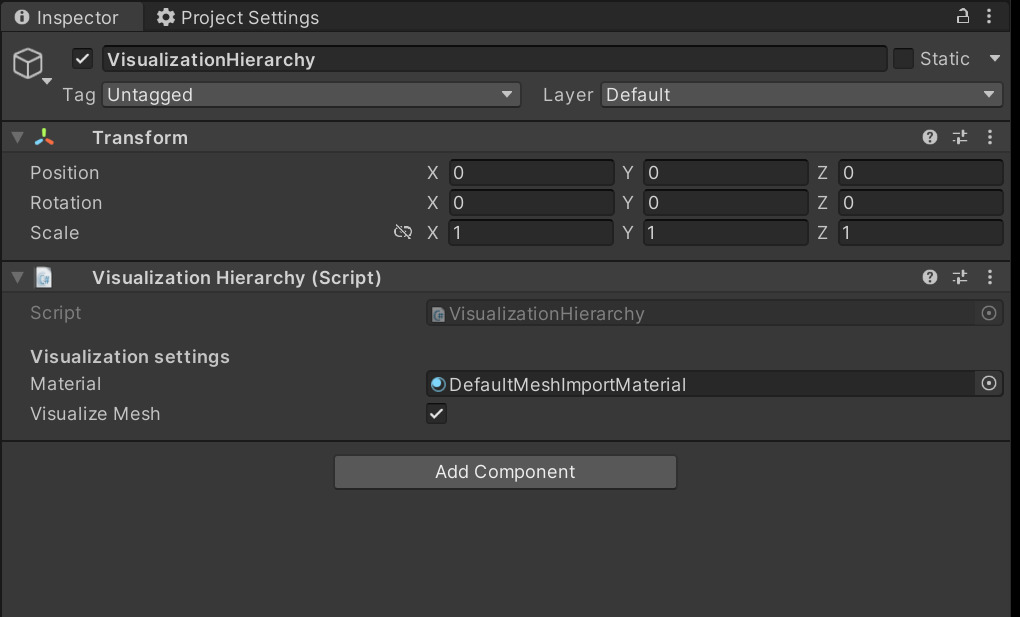
Sometimes mesh scans can be invisible. In this case select VisualizationHierarchy and make sure Visualize Mesh is set to true.
-
Sometimes mesh scans can be pink. If this happens make sure the material is set in VisualizationHierarchy
Congratulations, you’ve made it to the end!
Need a reminder of what you’ve done earlier in the guide? The previous part is right here: 02 - Creating Google Service Account and getting Google API Key
The next part of the guide awaits you here: 04 - Using augg.io Unity Editor Plugin