How to Update augg.io SDK
This guide provides step-by-step instructions for updating the augg.io SDK in your Unity project.
Update Process
1. Remove the Old SDK
- Navigate to your project’s Assets folder
- Delete the existing augg.io SDK folder (in example project located at
Assets/augg.io)
2. Insert the New SDK
- Copy the new SDK files into your project
- Place them in the same location (in example project under
Assets/augg.io)
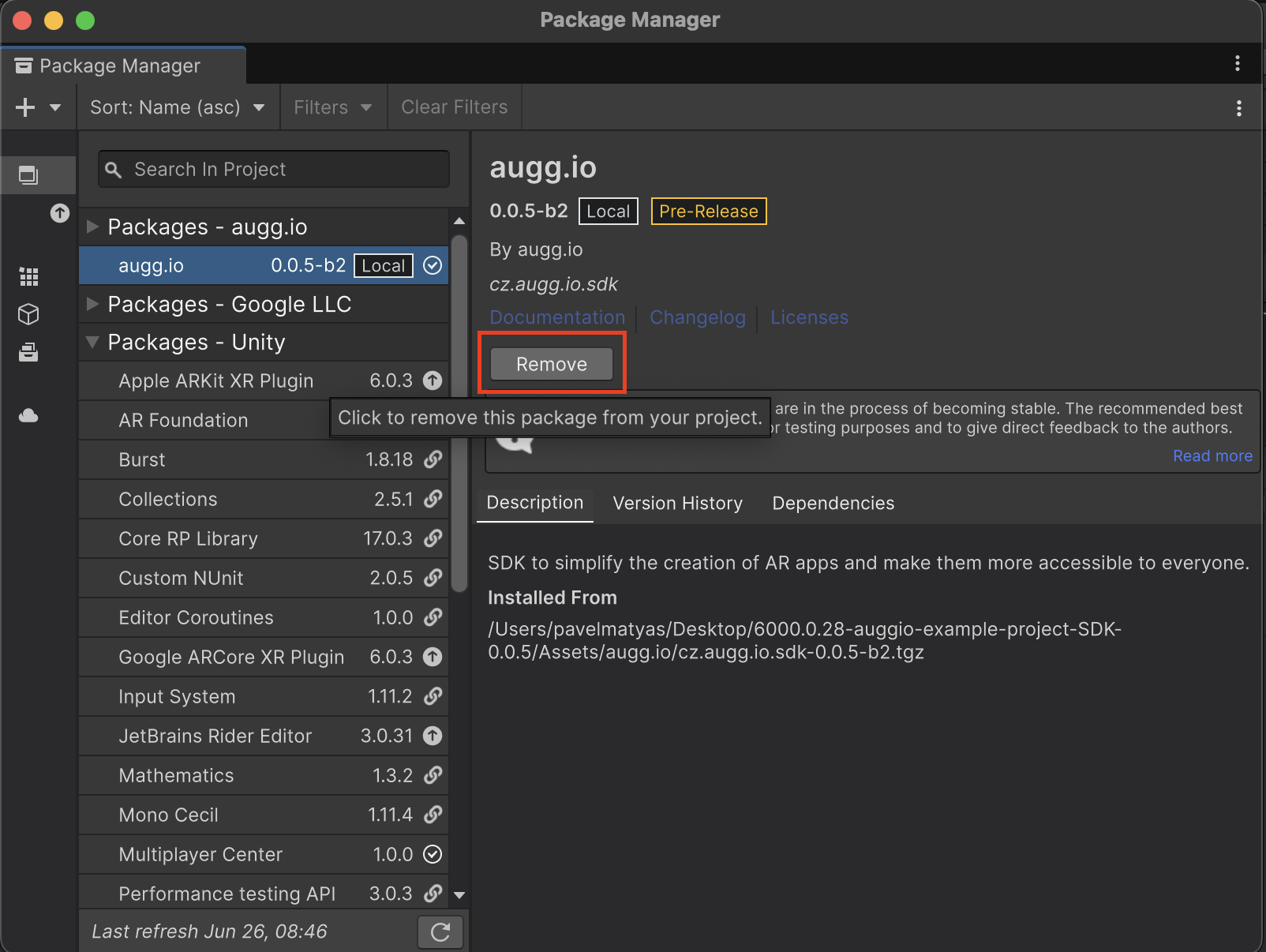
3. Remove the old Package from Package Manager
- In Unity, go to Window → Package Manager
- Find and select the augg.io plugin in the package list
- Click the Remove button to uninstall the old package
- Don’t worry if the project now contains errors - the errors will be resolved once we import the new version of the SDK
4. Install the New Package to Package Manager
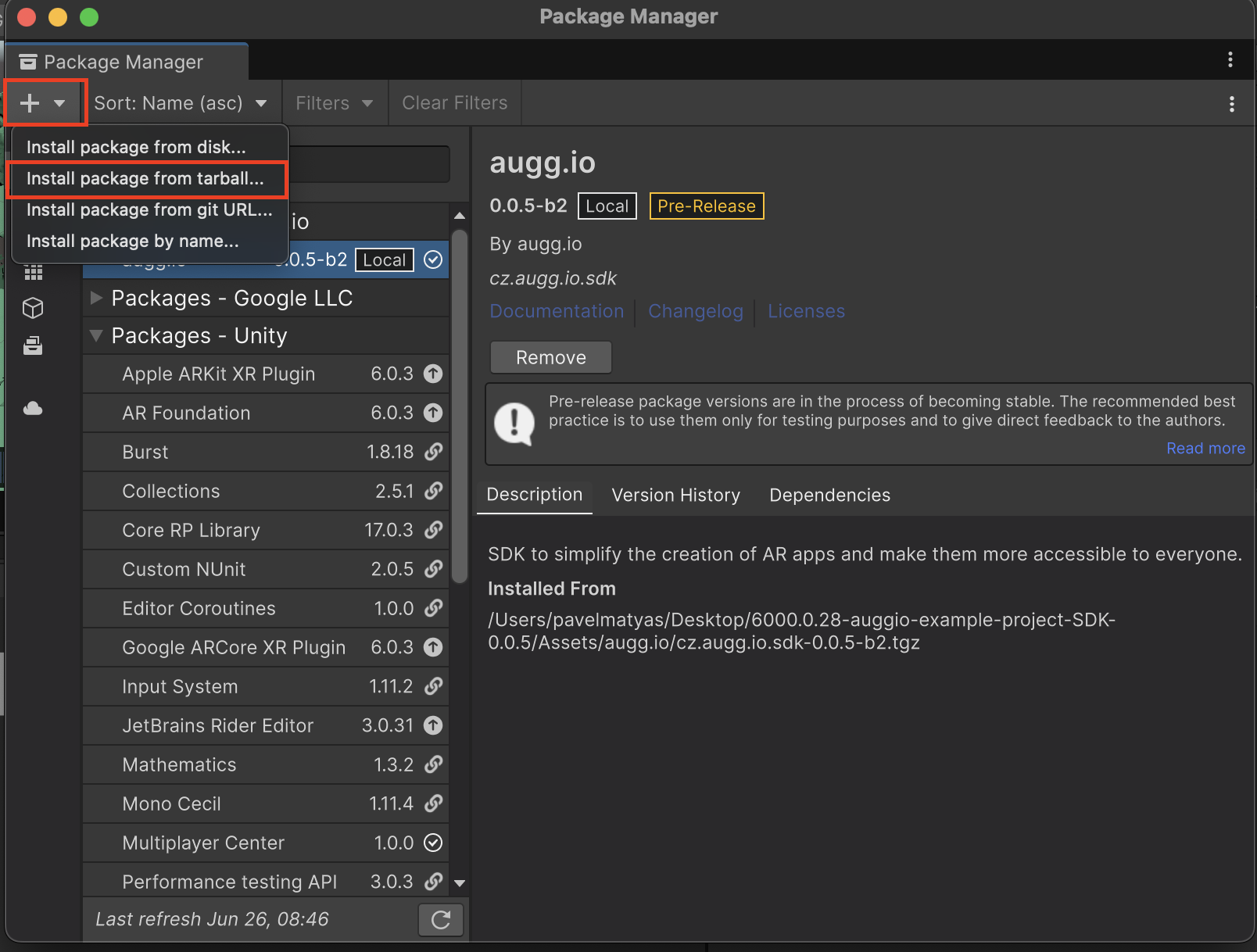
- In the Package Manager window, click the + (plus) icon
- Select Install package from tarball
- Navigate to the location of the new SDK package file
- Select the package file and confirm
5. Complete the Update
- Wait for Unity to load and import the new package
- The update is complete when Unity finishes importing all assets
- The console should now be without errors
Troubleshooting
If you encounter any issues during the update process:
- Make sure Unity is not in play mode
- Try restarting Unity
- Check the console for any error messages